Dark mode
- 5 improved
- 2 fixed
OmniSocials follows your system theme from today. Pick System, Light or Dark in your account menu or at the bottom of Settings.






OmniSocials now has a dark theme. By default it follows your computer or phone: a dark system gives you a dark OmniSocials, a light one keeps what you had. To choose for yourself, open your account menu at the bottom of the sidebar and pick System, Light or Dark under Theme. The same switch sits at the bottom of Settings.
Every page, dialog and menu was redrawn for the dark theme, including the calendar, the composer, the inbox, analytics and the post previews. A preview of a post copies the platform's own dark look, so an Instagram or X post looks the way it will on the app. Your link-in-bio page keeps its own colours in both themes, and the editor now shows it on your page's background, as visitors see it.
Review a post and fix it on one card
Every post in Approvals is now one card. The text sits on the left in a field you can type in, the comments sit under it, and the post preview sits on the right with the date it publishes. At the bottom you pick one of three: Request changes sends it back with a note, Edit yourself opens the post in the editor, and Approve approves it.
When you change the text on the card, the buttons turn into Undo, Save and Save and approve. When several channels share the text, the card says which other channels change with it, and the "Instagram only" switch gives that one channel its own text.
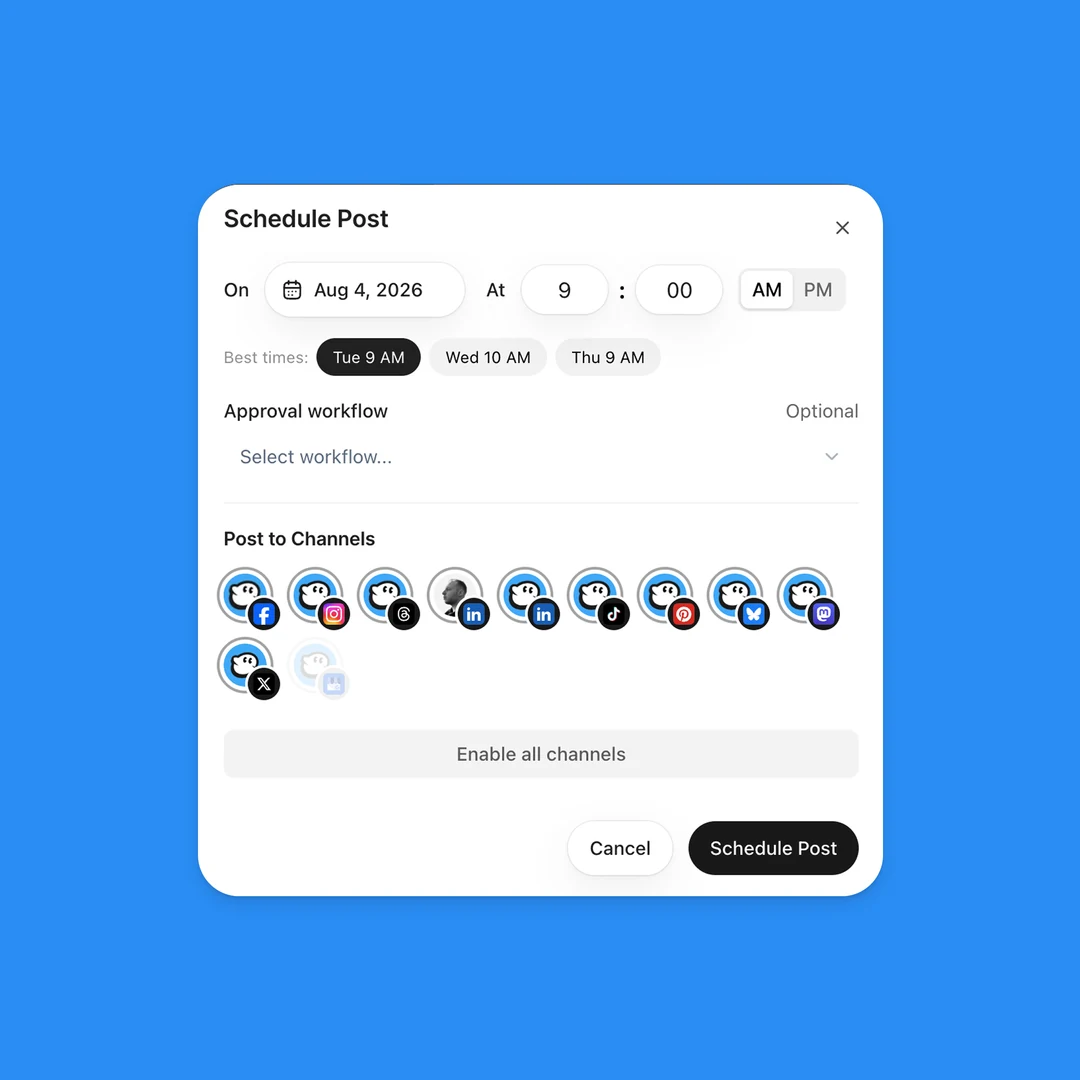
The line above the buttons shows where the post is in the review, for example "Waiting for you, step 1 of 2". Click it to see every step and who approved. The same steps show in the list view, and under the approval workflow when you schedule a post, where you can also pick No approval.
When you open a post from Approvals in the editor, a bar at the top shows whose post it is and the step of the review, with Request changes and Approve. After your decision you go back to Approvals.
Drag drafts and files onto the calendar
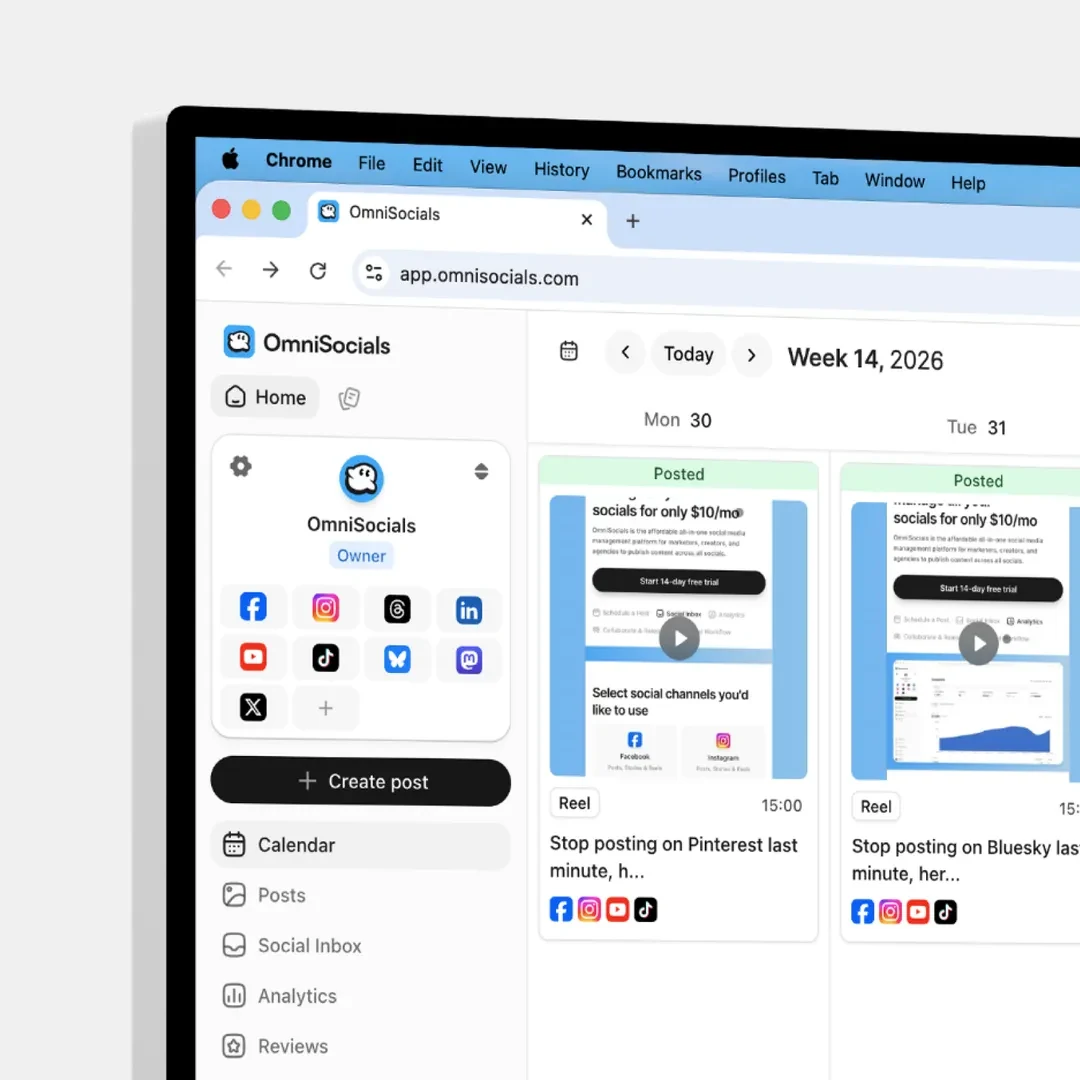
At the bottom of the calendar, a Drafts pill shows how many drafts wait for a date. Open it and drag a draft onto a day: the schedule window opens on that day, so you check the time and schedule it as usual. Drafts from the Drafts list in the sidebar drop the same way.
Drop pictures or a video from your computer on a day to start a new post for that day. One video starts a Reel.
Schedule a planned draft in one click
A draft with a date now shows that date on its button, for example "Schedule for Wed 9 Dec, 10:00". One click schedules it at that time. The arrow next to it lets you change the date and time, or remove the date. When the date has passed, when the post needs approval or when TikTok is one of the channels, the button opens the schedule window first.
Improved
- Small grey text is easier to read - dates, ages and helper lines use a darker grey in the light theme and a lighter one in the dark theme, so they meet the readability line on every surface.
- Blue links read better on white - the blue of links and text labels is a step darker in the light theme; buttons keep the OmniSocials blue.
- The browser bar on a phone matches the app - in the dark theme the status and address area of Safari and Chrome turns dark with the page.
- Settings in one click - the gear next to your name at the bottom of the sidebar opens Settings. Your account menu, with the theme and Log out, opens above your name.
- Every menu looks the same - dropdowns and right-click menus now share one spacing and one corner shape, and a row that deletes or removes something is always red.
Fixed
- A post sent back for changes skipped the review the second time - when you edited a sent-back post and sent it again, it was scheduled without a new approval. It now goes back to the reviewers.
- A post left Approvals after the first step - in a review with two steps, a post approved at step 1 disappeared from the Approvals page until you reloaded it. It now stays and moves on to step 2.