A new look for most of the app
- 9 new
- 14 improved
- 7 fixed
A big update. Most of the app got a new look, and a few things are new. Here is what changed, one part at a time.
One bell for updates from every workspace
The bell next to the workspace selector collects what needs you, from every workspace you are in: a post that failed, a post that waits for your approval, an approval, a request for changes, a comment or an edit in a review, a channel to reconnect, a teammate who joined, and milestones for your posts and followers.
The red badge counts what is new, and a blue dot marks each update you have not opened yet. Click an update to go there; OmniSocials switches to its workspace first. On the phone, the bell sits in the top bar.
Review posts in a feed and comment on any word
Approvals is now a feed. Every post that waits for you is a card with its real preview per channel. Approve it, or choose Request changes and write what to change. The tabs are For you, Sent by you, In review, Approved and Sent back, and the list view is one click away.
Select words in a caption to comment on them, or suggest new words that the author applies with one click. On a Reel you comment on a moment in the video, on a Story on a point of a slide. You can also edit a caption in the card itself and choose Save and approve. A post you have decided folds into one line, and the message tells you who reviews next.
Edits during a review keep the approvals: a change to the caption, the first comment or the time keeps every approval given, and the people who approved get a notice. A change to the media or the channels starts the review again from step 1, and the editor asks you first.
Every post option in one bar under the editor
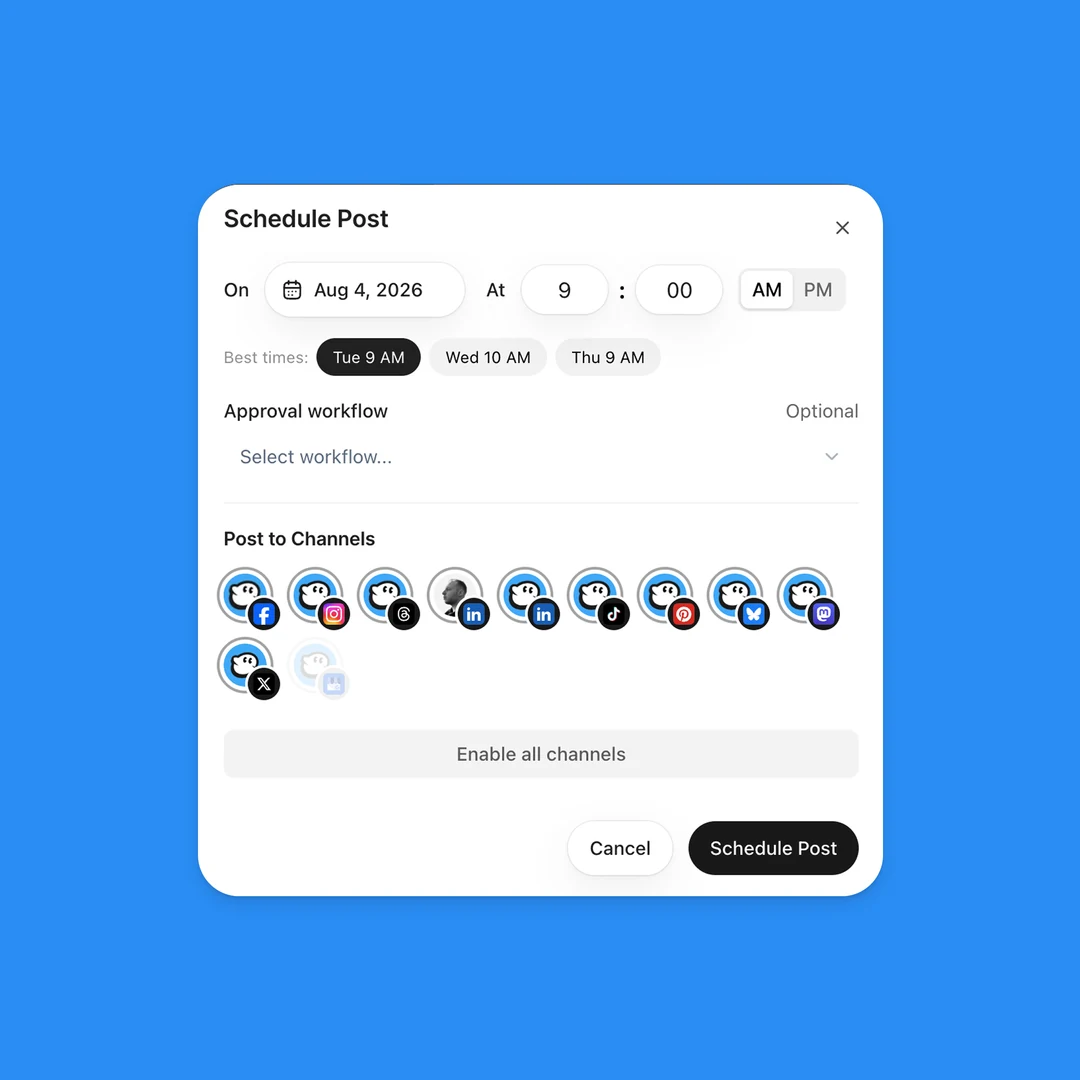
The options of each channel are now chips in a bar under the editor. A switch turns on or off in place, a short list opens on its chip, and the rest opens one panel above the bar, on the page of that channel.
After a pick, the panel goes back to the channel page, so you can set several options in a row. The channel icons at the top of the panel switch channel; Done or Escape closes it.
The month view scrolls like a real calendar
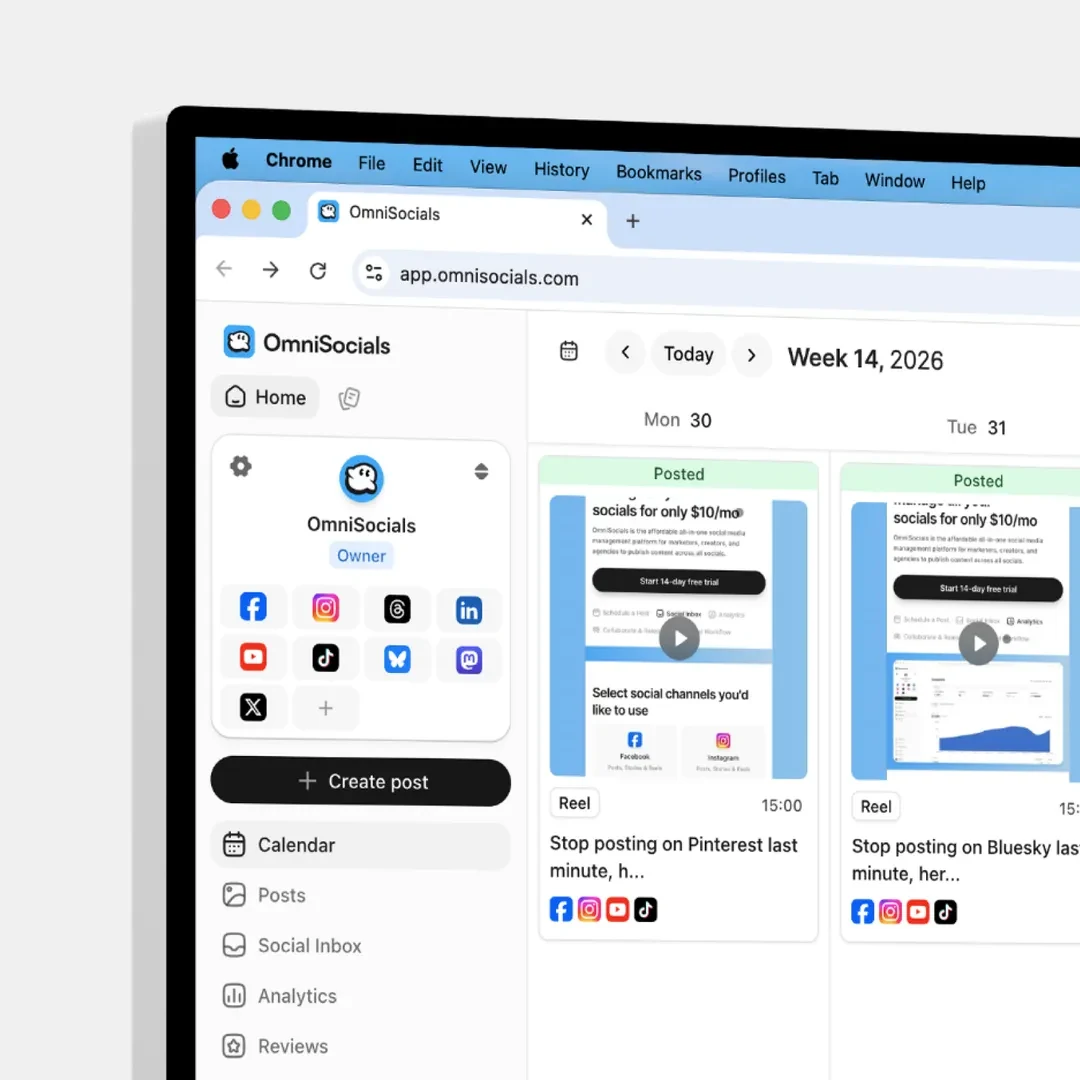
The Month view is one long strip of weeks, like the calendar on a Mac. Scroll up or down and the title follows the month at the top. The arrows, Today and the month list jump there. Every past day is grey, and the 1st of a month carries its name.
Click the title ("October 2026") to see every month with the number of posts in it; in Week view the list shows the weeks. A note on the calendar now looks like a paper note, and a notable day colours the top of its day in the colour of its category: holidays orange, shopping days red, awareness days green.
A new Library with folders you can see into
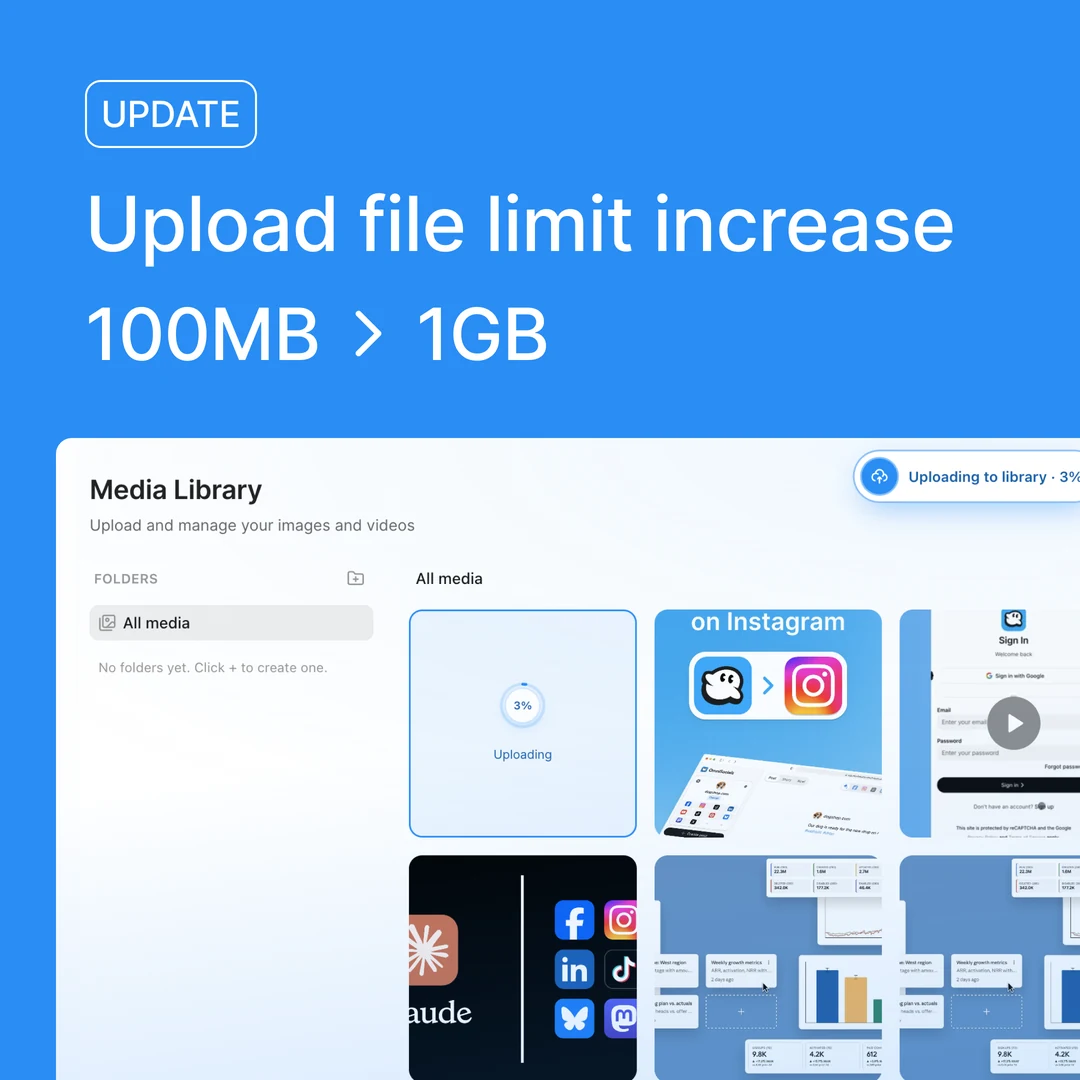
The tabs All, Images, Videos and PDFs show how many files each has. Folders are the first tiles of the grid, with their three newest files on top. Files sit in rows at their own shape, grouped by the day you uploaded them, and open full screen.
Drop files anywhere on the page to upload them, or choose Use in a post to start a post with them. New folder sits at the top of the page, an empty folder offers Move files here, and you can sort by newest, oldest or biggest.
Add media in the editor now shows the same Library, with an In this post column next to it: the files of the post in the order they publish. Drag to change the order, or remove a file with the x. The column shows the limits of your channels, and a picker opened from a channel tab changes only that channel.
See how a post does at a glance
The post page opens with the numbers: a card per metric with a small chart and the change since the last check, one chart over time (all channels or per channel) with a line such as "Threads brought 99.8% of the views", and every channel with its share of the views.
A channel that did not post gets one line with the cause and the next step: Try again, Edit post, Reconnect, open the platform, or Top up. When an automatic retry is planned, the line says at what time. Details shows the full message from the platform.
The statistics also arrive on time now: every 2 hours in the first week of a post. Until now the checks ran up to 8 hours late, and a new post could show zeros for most of a day.
Comments grouped per post in the Inbox
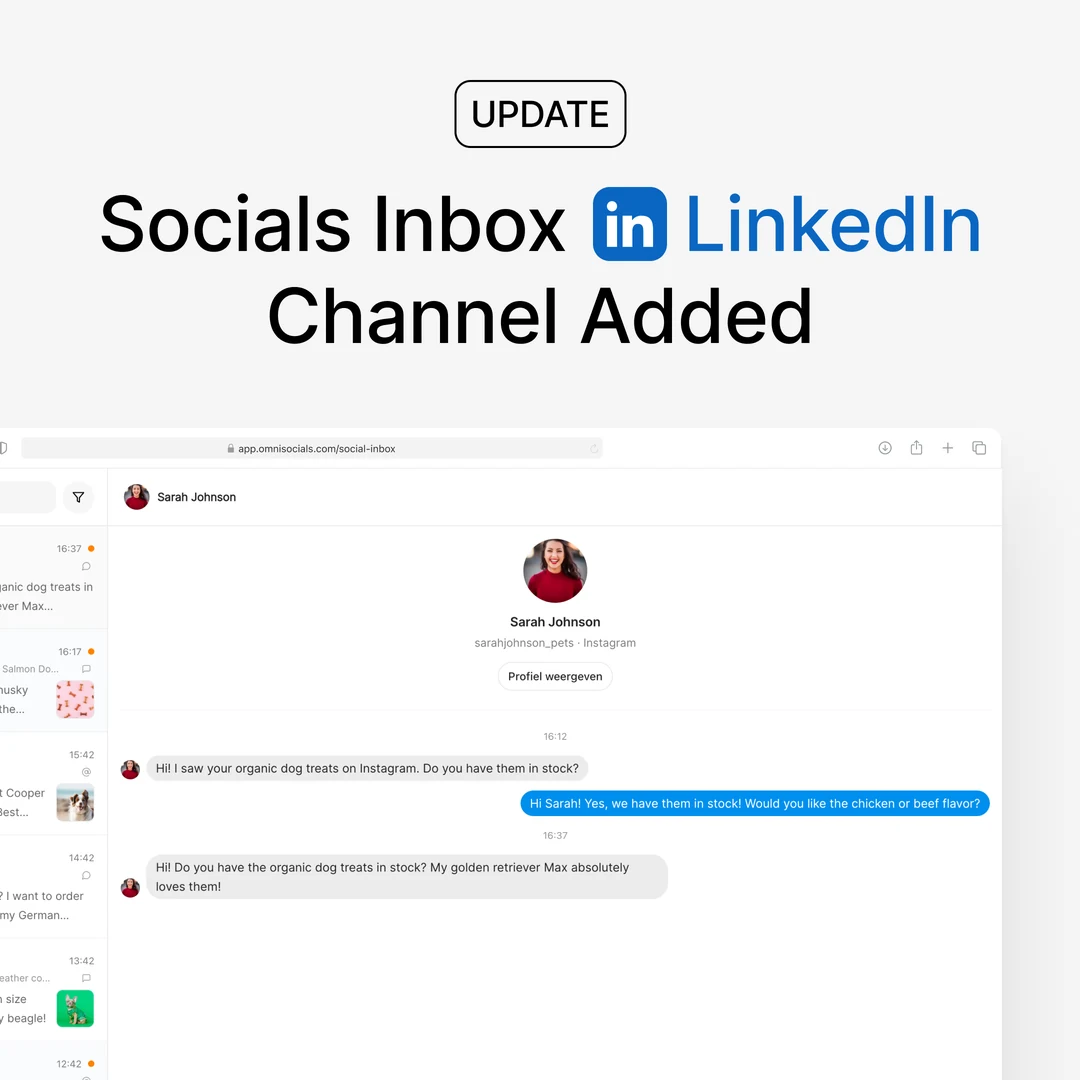
All comments on a post are one conversation. The row shows who commented ("Daan and 2 others") and how many comments are new. Opening the post marks them all as read, so the count in the sidebar goes down at once.
The filter takes several types and platforms at the same time, Mark as unread puts a conversation back, and Open post now also works for older Instagram comments. A comment that a comment-to-DM automation answered carries a tag. Like, hide, delete and reply work the same way on every platform that allows them.
A new Settings, with Change password
Settings opens over the whole window, with a menu on the left, a search (⌘K or Ctrl+K) and a switch between your organisations. Every page is new and calmer, from Profile (your name can now be changed) to Roles with one switch per permission and Approval workflows written as a sentence.
To change your password, open Profile, then Security, and choose Change password. If you do not remember the current one, the same dialog emails you a reset link. After a change, or a reset by email, only the browser that made the change stays signed in, and you get an email with a button to reset the password right away in case it was not you.
Tall images fit the Instagram feed
A 9:16 image in an Instagram post is now cropped to 4:5 around the subject before it publishes, so the post looks the way you see it in the preview and Meta can boost it. Until now Instagram cut it itself, around the centre, and a boost was refused.
Under the Instagram options, Image fit lets you drag the picture to choose what stays, or keep the original. Stories, Reels and your other channels keep the whole image. The API and the AI assistants take media_fit for the same choice.
Improved
- Billing at a glance - the Overview tab shows your plan, its price and your use of workspaces, extra users and credits in one block, with a bar for each. Credits and Invoices have their own tabs. Extra users are added with the card on file, without a new checkout, and the window says what is charged and when.
- Channels in one list - the Channels window has three parts: Needs attention, Connected and Add a channel. Every step of a connection (a Facebook Page, a LinkedIn Page, a YouTube channel or a Google location to pick, a Bluesky handle or a Mastodon server to enter) now happens in that same window. After a sign-in the window opens with the new channel marked Just added. A channel that needs to be reconnected tells you how many planned posts wait for it.
- A clearer workspace menu - each workspace shows its channels as a line of icons, with the ones to reconnect first. One Channels row opens the Channels window. If you are in more than one organisation, a row of organisation tiles switches between them.
- A shorter user menu - the menu under your name has Profile, Settings, Billing (with the days left in a trial), Invite team, What's new, Refer and earn, Resources, Help and Log out.
- A new Reports page - Reports shows complete numbers for the period you pick: totals with a chart, a card per channel, your audience, profile activity, and every post with a link to it on the platform. A number that a platform does not report says so, instead of showing 0.
- Scheduled posts in the editor - a scheduled post shows when it publishes ("Publishes Sat 10 Oct, 22:45") next to Save changes; click the time to pick another one. The arrow on Save changes holds Change date and time, Post now, Turn into draft and Delete.
- Drafts in the sidebar - each draft shows the first line of its caption as the title, the next lines in grey, its picture, its channels and its planned date.
- Automations at a glance - every automation is one row with its flow (Instagram to TikTok, or a keyword to a DM), its status, its schedule and its counts. The comment-to-DM editor shows a phone with the comment and the DM next to its four steps, and the bottom of the editor always tells you what still stops a save. A new repost is set up one question at a time, and the activity page shows the picture of each person who commented.
- Comment-to-DM automations from the API and your AI assistant - the new
/automationsendpoints create, pause, edit and delete a comment-to-DM automation and read its activity, and a post made through the API can carry its automation (comment_dm_automation). The MCP server (1.42.0), the CLI and the eight SDKs have the same. The API key needs the new Automations switch at key creation; an automation sends DMs in your name, so the scopes are opt-in, like the inbox. - Notable days, one by one - under Notable days, open a category and choose each day you want on your calendar.
- Filters on the Posts page - each filter has its own icon and shows what you picked, with an x to clear it. The steps for views, likes and comments now fit each number.
- Empty pages show the next step - an empty page (Approvals, Posts, Inbox, Library, Drafts and the lists in Settings) shows a small drawing and what to do next.
- What's new in the sidebar - the Latest update card shows a small picture, and a big update like this one brings a card per change. Use the arrows to go through them, or the X to close one.
- A clearer reset page - the reset link now shows what is wrong with a password under the field, and a link that has expired or was already used says so and offers a new one.
Fixed
- X videos that failed with "stream is not defined" - since October 8, an X post with a video that had to be converted first failed with this message. Open the post and choose Try again to publish it.
- A TikTok first comment that came hours late - the first comment goes out once TikTok has the video ready, and that took up to 10 hours while the statistics checks ran late. Try again now sends it as soon as the video is ready, instead of saying it is still processing.
- The Videos tab in the Library - it stopped after the newest files; it now finds every video.
- Week numbers - in a year that starts in the middle of a week, the Week view skipped week 1 (4 January 2027 showed as week 2).
- Inviting a team member - the role list in the invite window opened empty.
- Feature requests - opening a feature request showed an error.
- Notable days - the Super Bowl now falls on the second Sunday of February, and Cyber Monday shows again in a year when it falls in December.